 TRIPLE PLAY SPORTSERIE, PENNSYLVANIA
Turn the power on
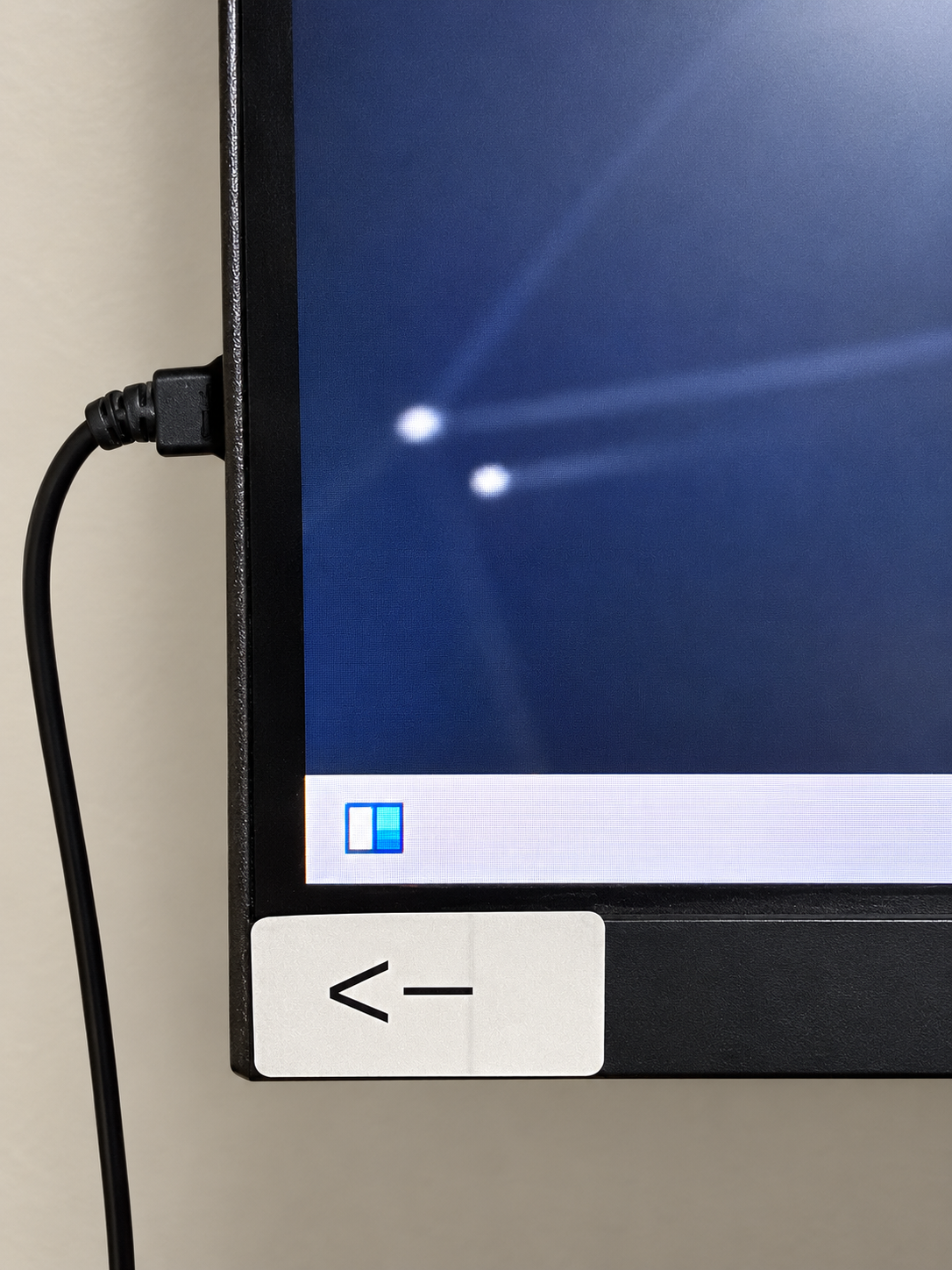
Use the power button at the location indicated by the arrow sticker in this photo. Allow the computer to finish starting. If the desktop is not visible, follow the TV source instructions in steps 4 and 5 below.
Choose your sport for equipment directions, startup photos, videos and manufacturer guides.
Use only the balls labeled for the machine you are using. Check the ball and bucket labels before loading.

Safety reference: Sports Attack Junior Hack Attack manual.
Our three-wheel machines use individual speed dials. Use the pitch chart on the machine and have staff confirm the setup for your sport.
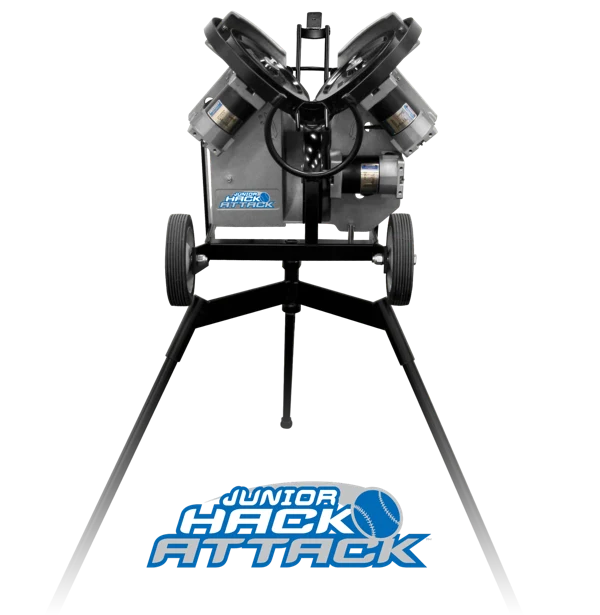
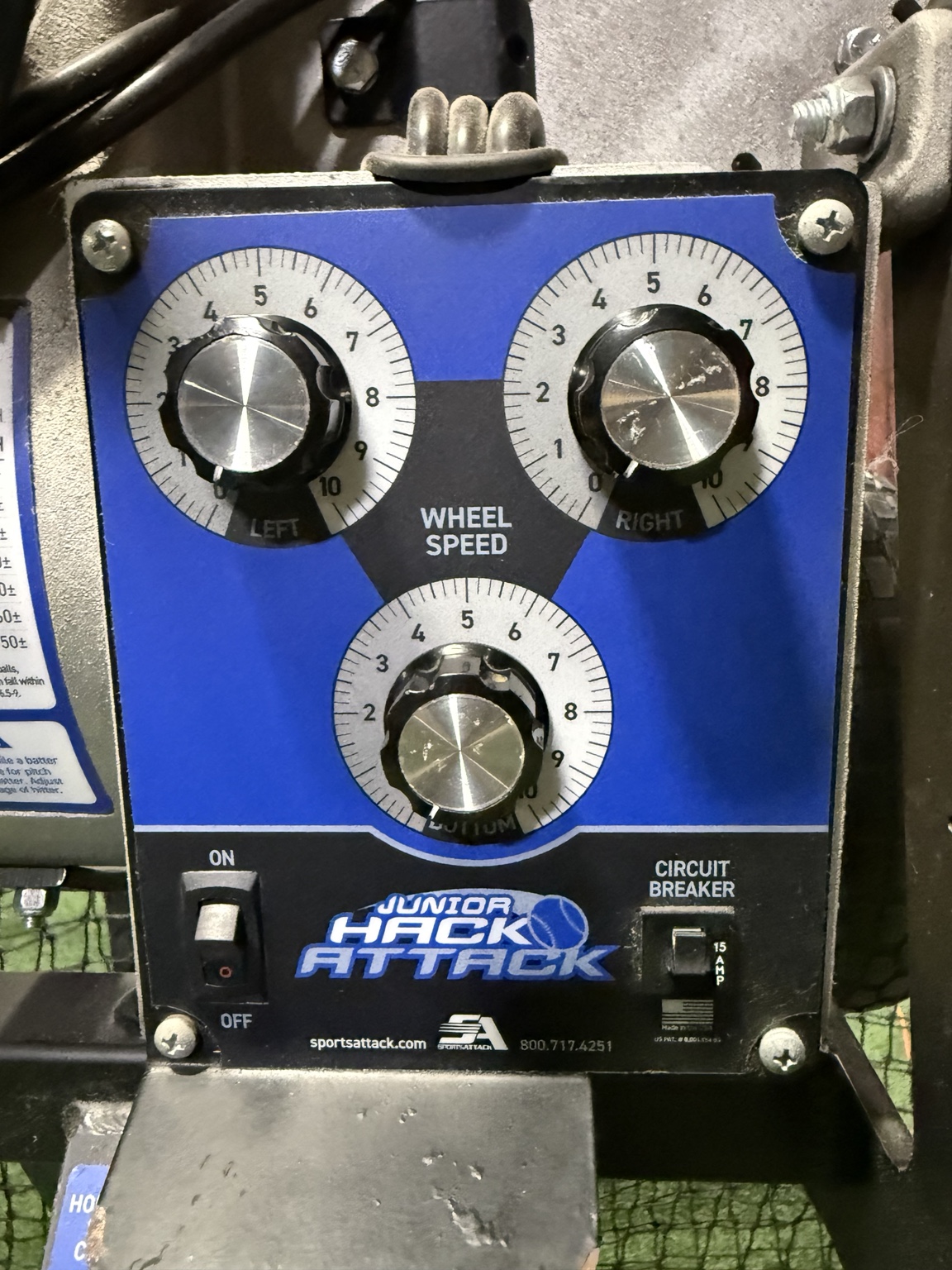
Use only balls labeled for this machine. Confirm the correct ball type with staff.
Use the manual that matches the machine’s configuration. Staff handles conversions and repairs.
Sports Attack demonstration. Open the full video library for fastball, curveball and setup demonstrations.
Our machine has the smaller controller mounted low on the frame. Use the guides below for the earlier I-Hack layout and have staff confirm the settings on our unit.
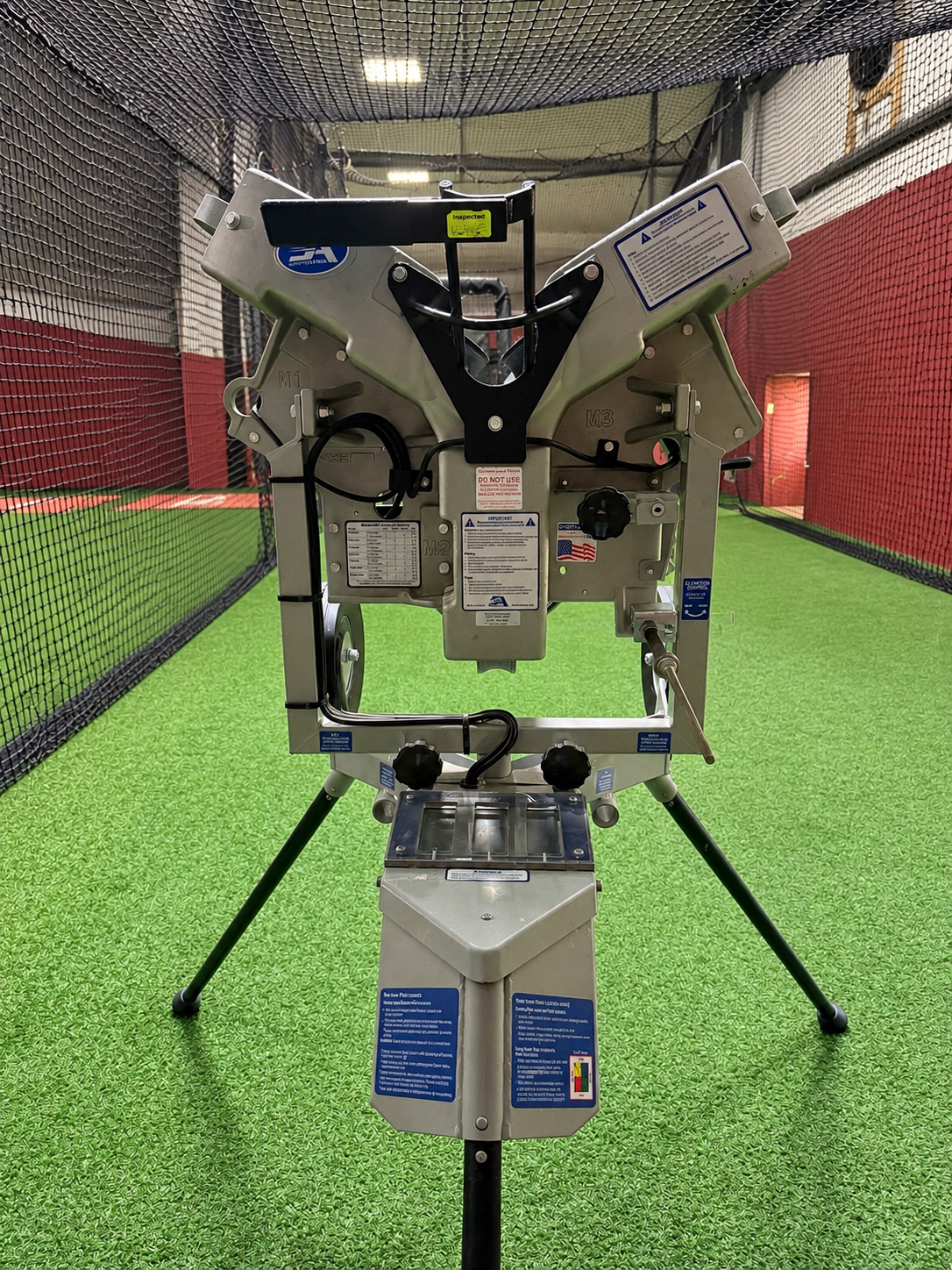
Use only balls labeled for this machine. Check with staff that the ball type matches the machine’s current setup.
Return every wheel-speed control to 0. Use the on-screen Shut Down command, switch power off, then unplug. Wait until all wheels have stopped before moving or putting the machine away.
Sports Attack manufacturer resources. The setup manual is the 2020 revision for the earlier frame; the controller guide is a later revision. Follow the controls on our machine and ask staff if a screen differs.
Manufacturer demonstration of the I-Hack interface.
These videos are linked from Sports Attack’s I-Hack training library. Open all manufacturer I-Hack videos.
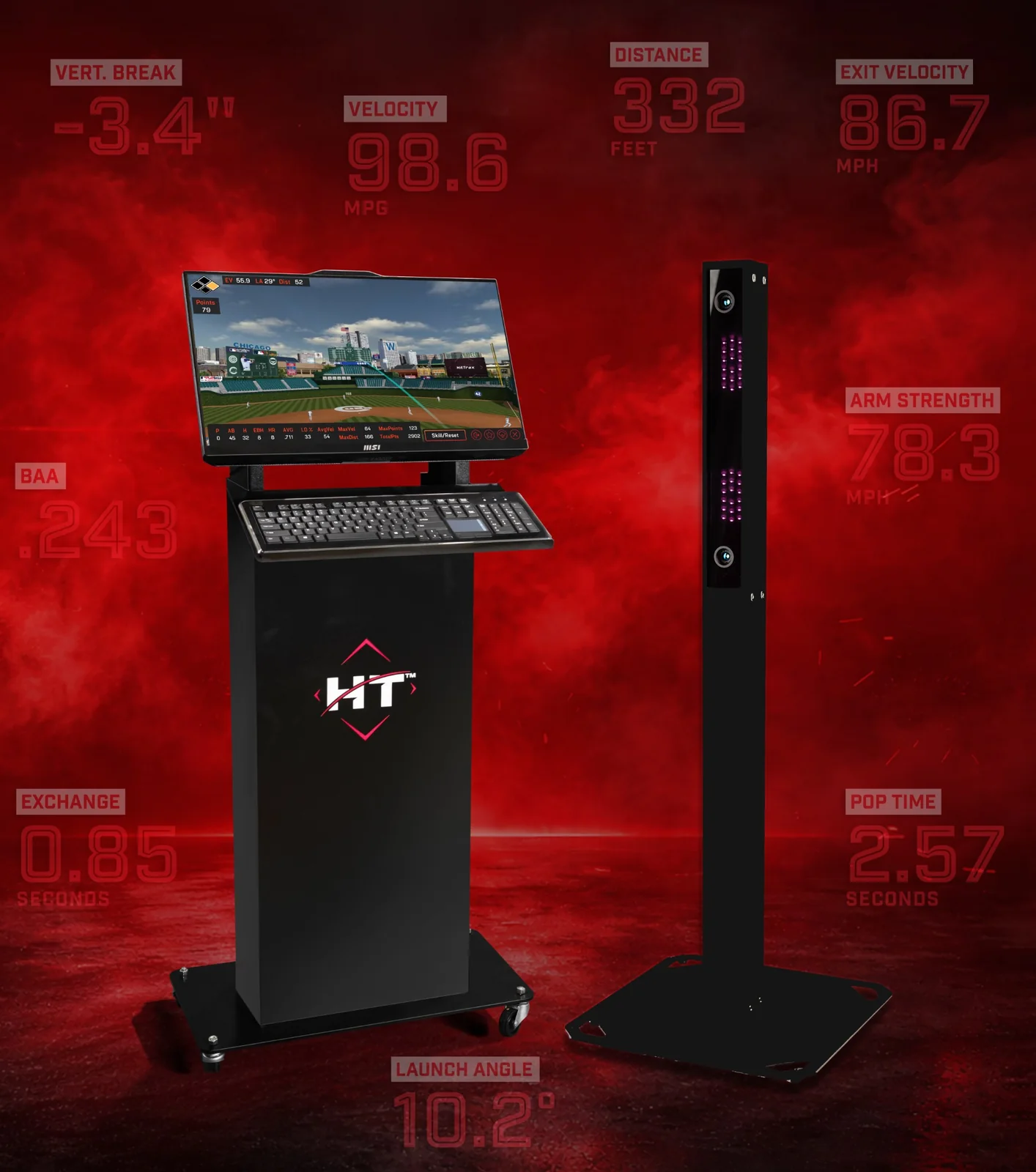
Use real-time hitting feedback to review your session with an instructor. At Triple Play, HitTrax access is tied to a booked private lesson; confirm arrangements with your instructor.
Use the power button at the location indicated by the arrow sticker in this photo. Allow the computer to finish starting. If the desktop is not visible, follow the TV source instructions in steps 4 and 5 below.
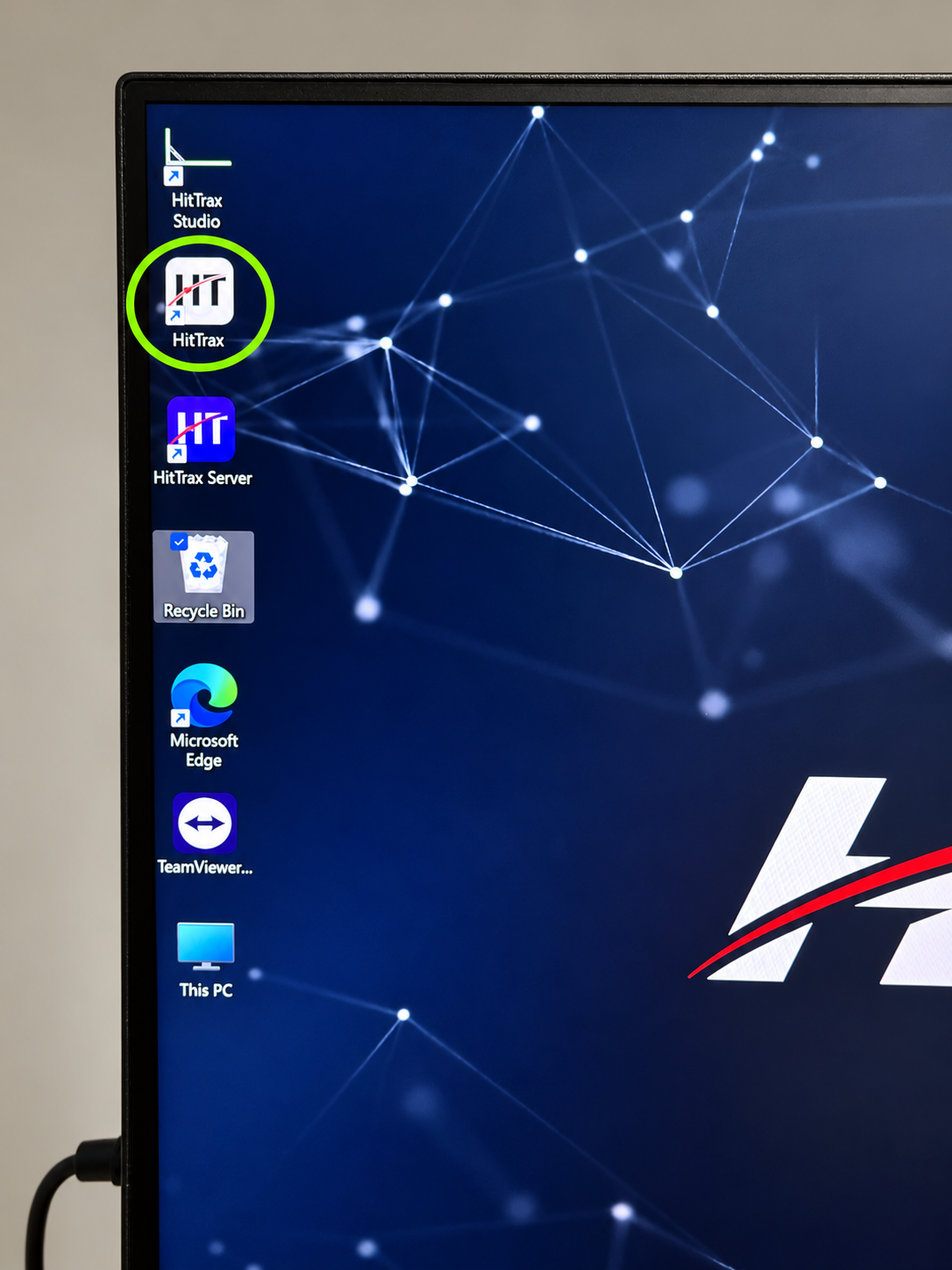
Once power is on and the desktop is visible, open the WHITE HitTrax icon circled in the photo. Use HitTrax, rather than HitTrax Studio or the purple HitTrax Server shortcut.
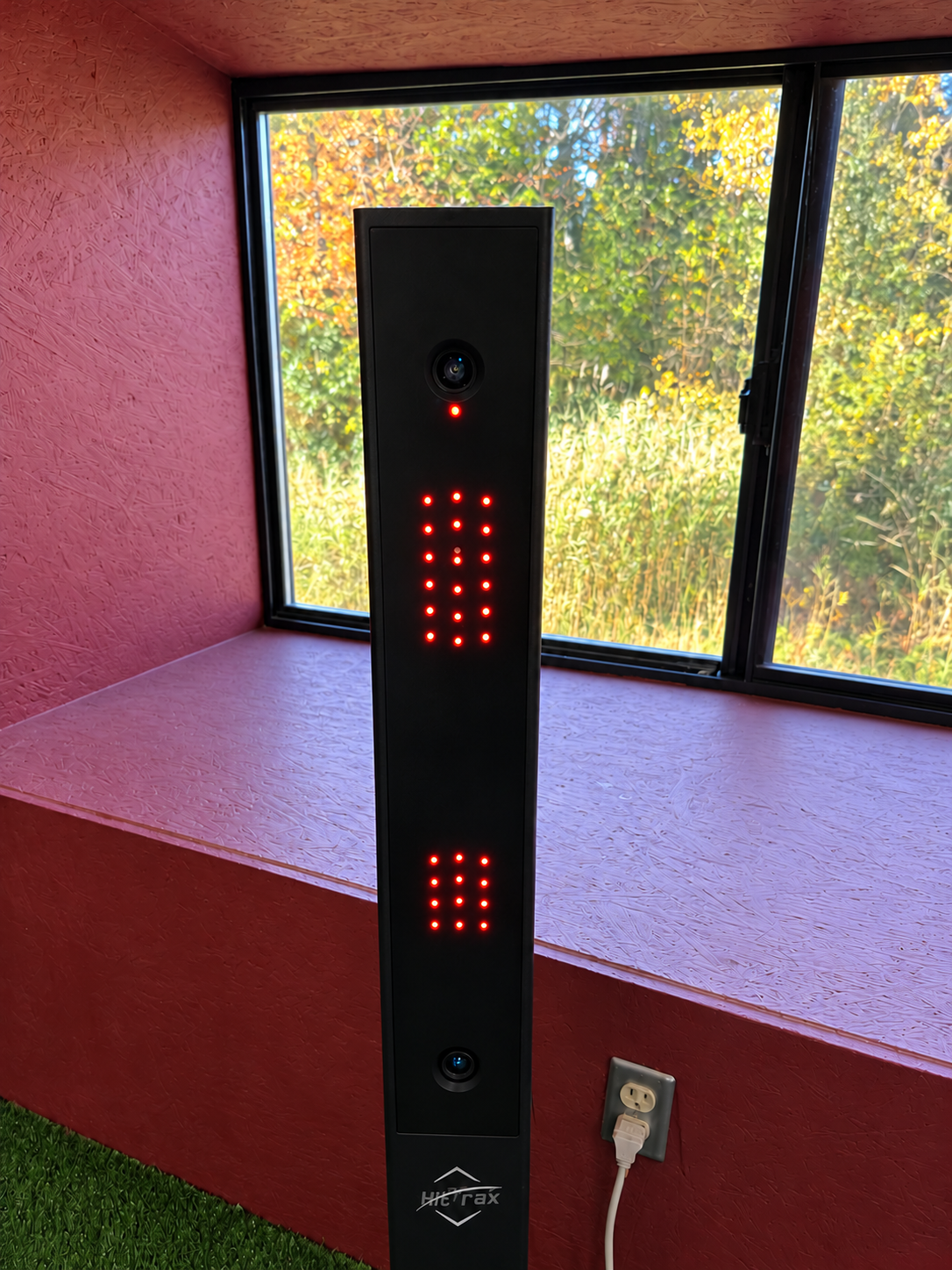
When connected, the lights on the HitTrax device will be RED. If it does not connect, ask staff for help.
The TV may be on a different source. If you see TV Plus or another TV screen, open the Source controls.
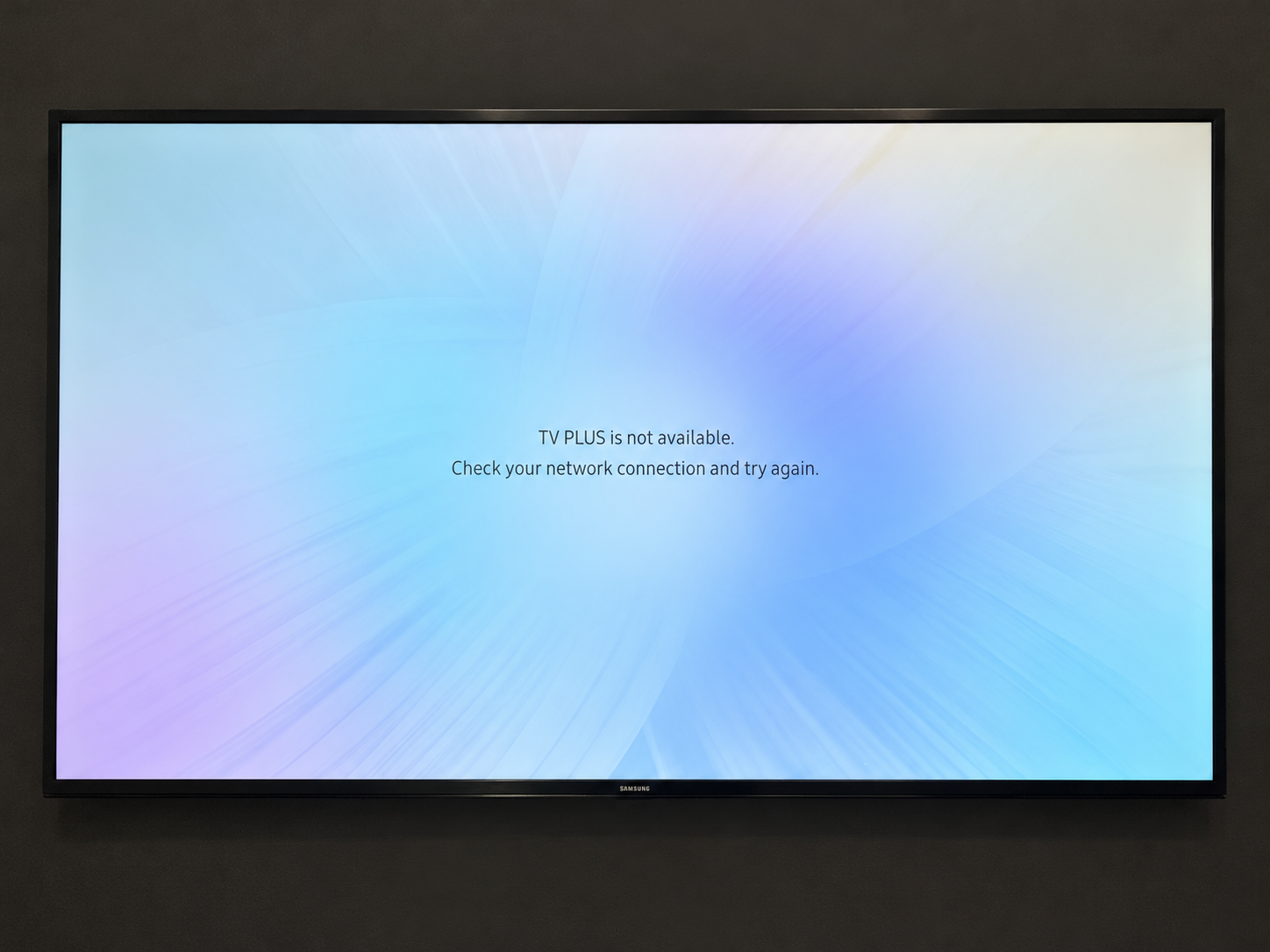
Press the Source button at the top right, then select PC. Wait for the HitTrax computer desktop to appear.
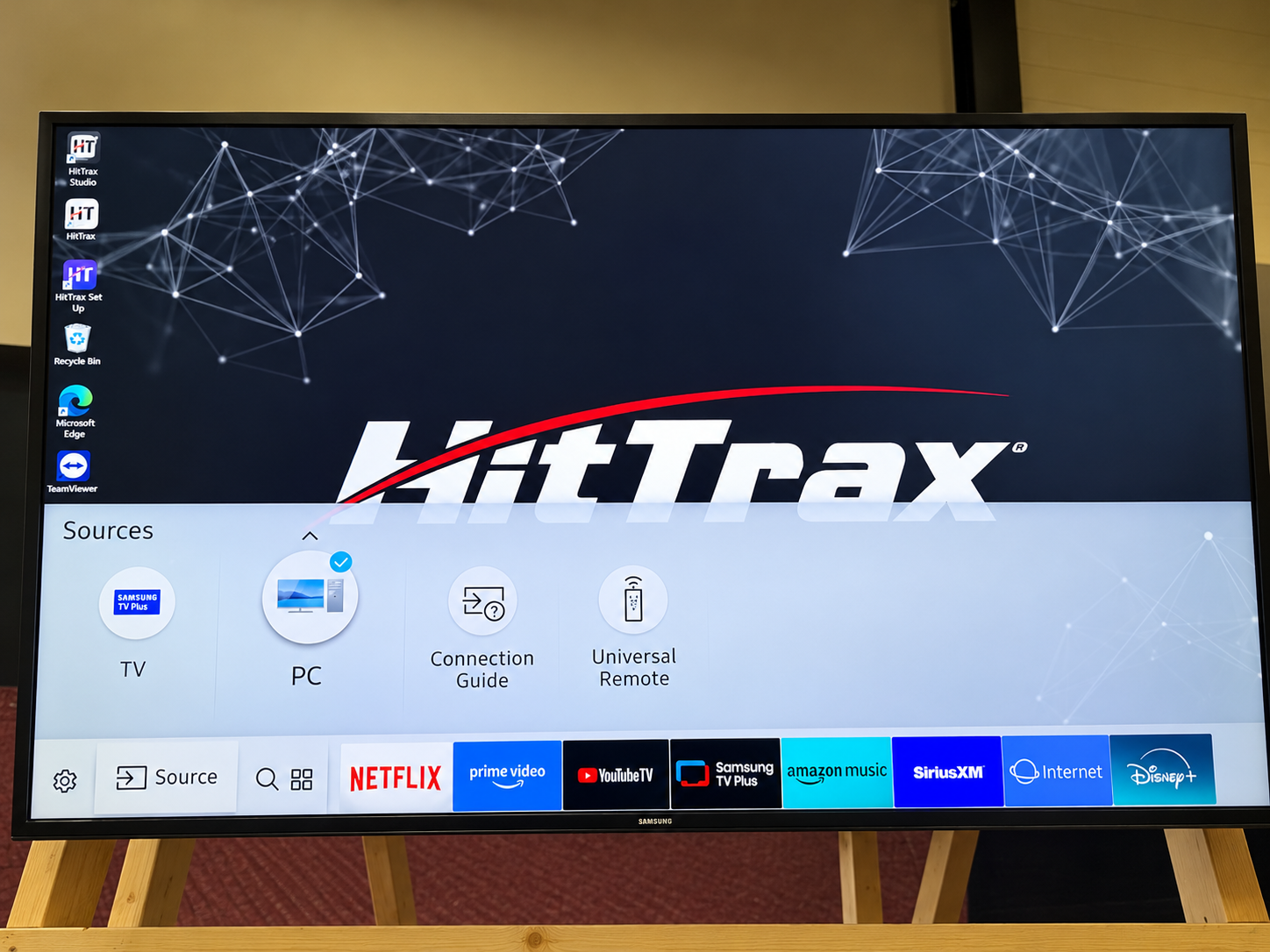
Photos have been edited to remove netting and background distractions. Physical equipment and its controls remain in place at the facility. Ask staff if the displayed screen differs.
Situational Hitting practices game scenarios. Skills Challenge focuses on specific targets. Around the World challenges you to place successive hits farther toward the pull side.
Instructional video linked by HitTrax. Open on YouTube. The video may show a different software version; your instructor can guide you through our Gen 6 system.
Start the equipment, choose your activity from the MultiSport screen, and sign in with your own E6 player account for golf.
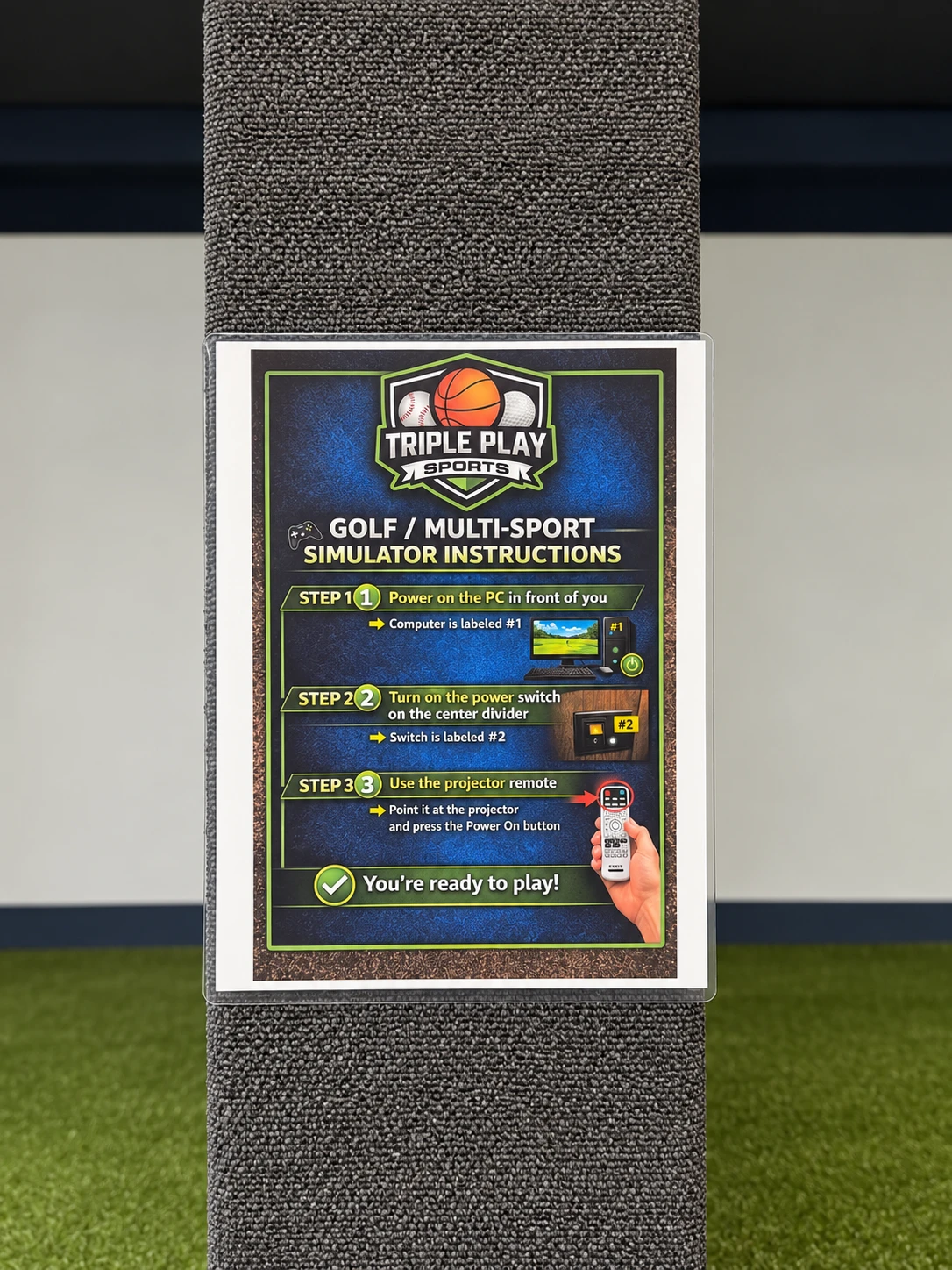
Follow these steps in order, matching the numbered labels at your bay. Select any photo to view it larger.
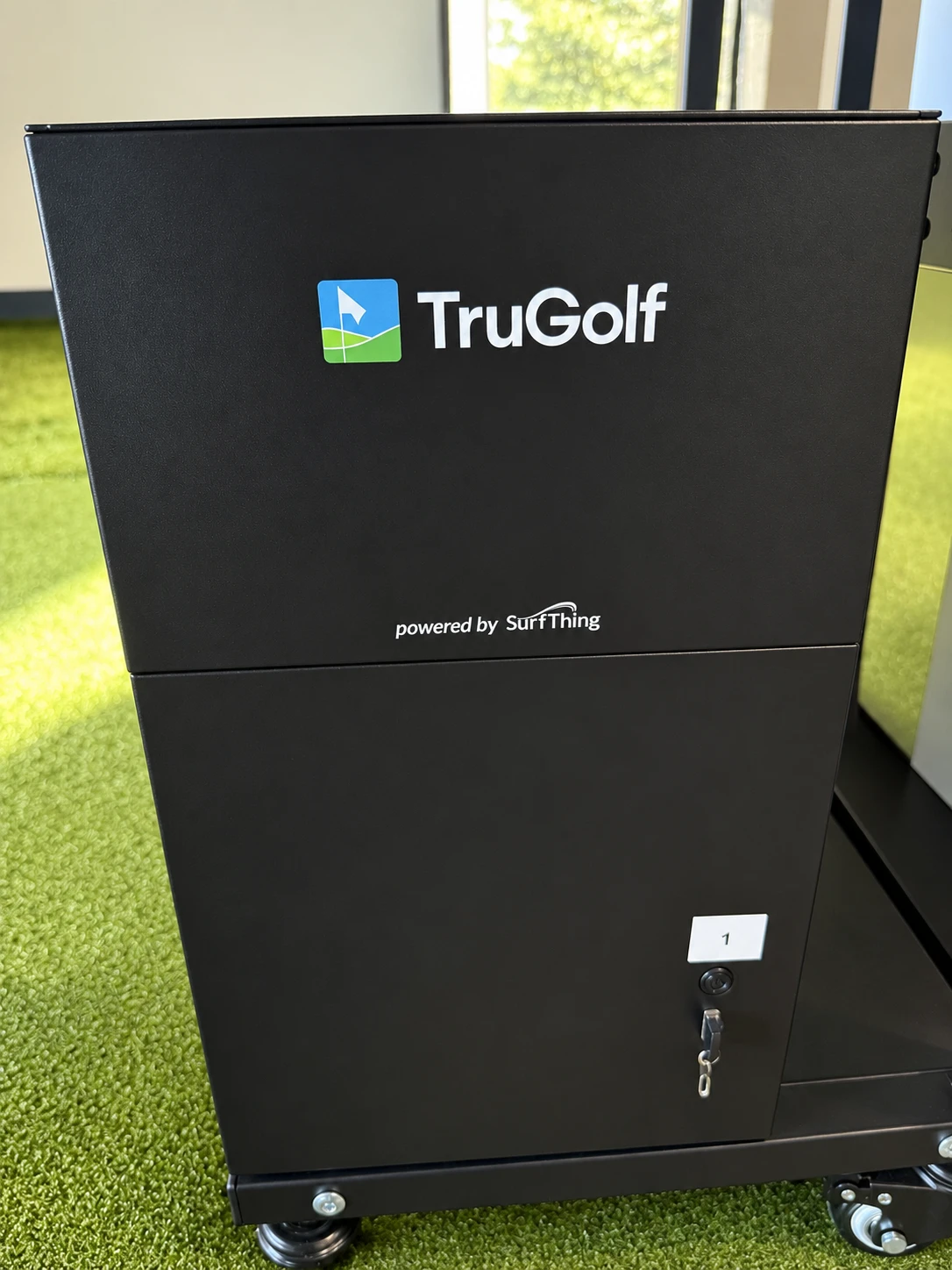
If the PC is off, press the round power button below the white “1” label on the front of the TruGolf computer. Allow it to finish starting.
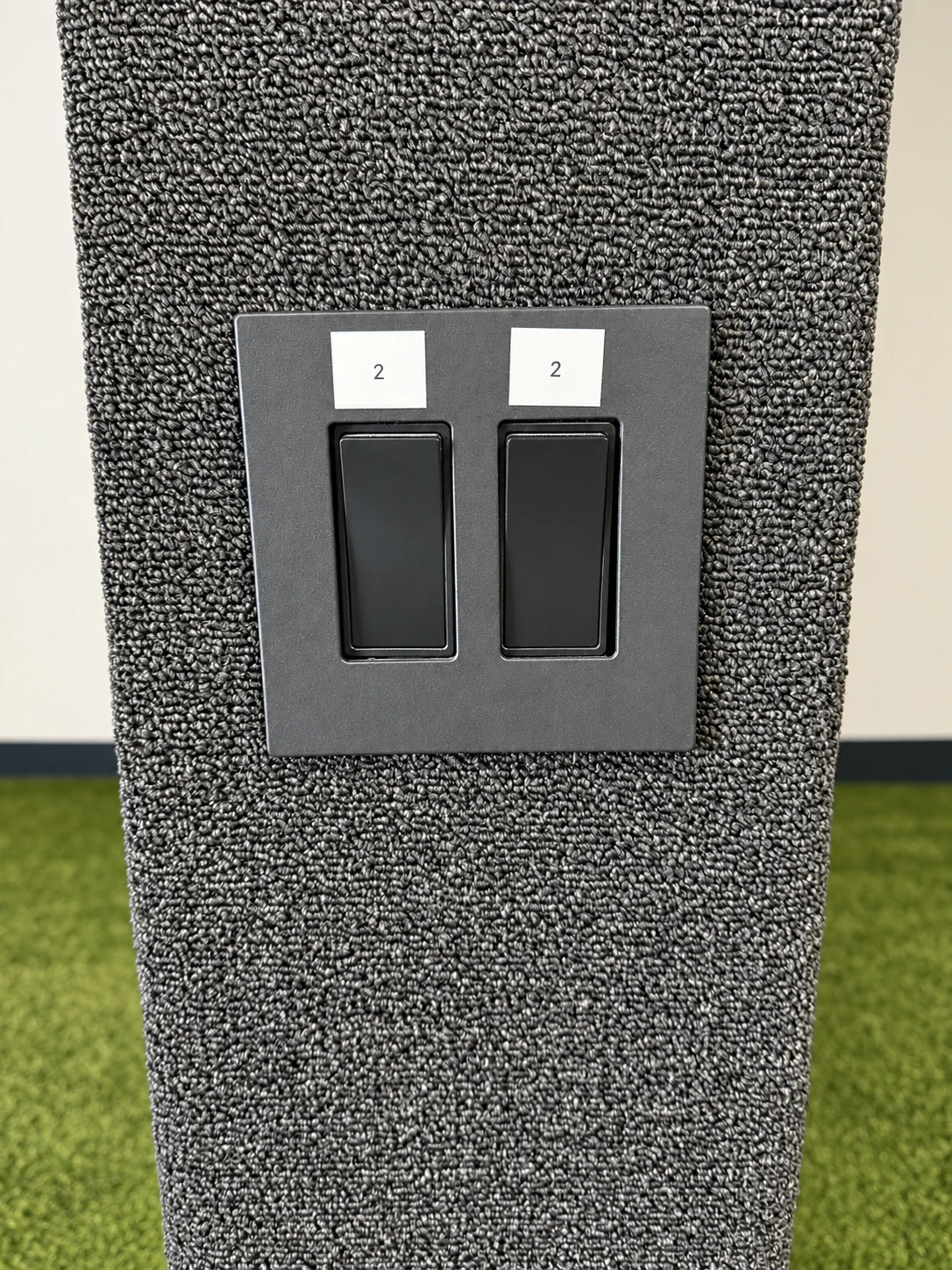
Use the switch labeled “2” for your simulator bay on the center divider. It turns on the launch monitor and supplies power to the projector. Ask staff if you are unsure which switch serves your bay.
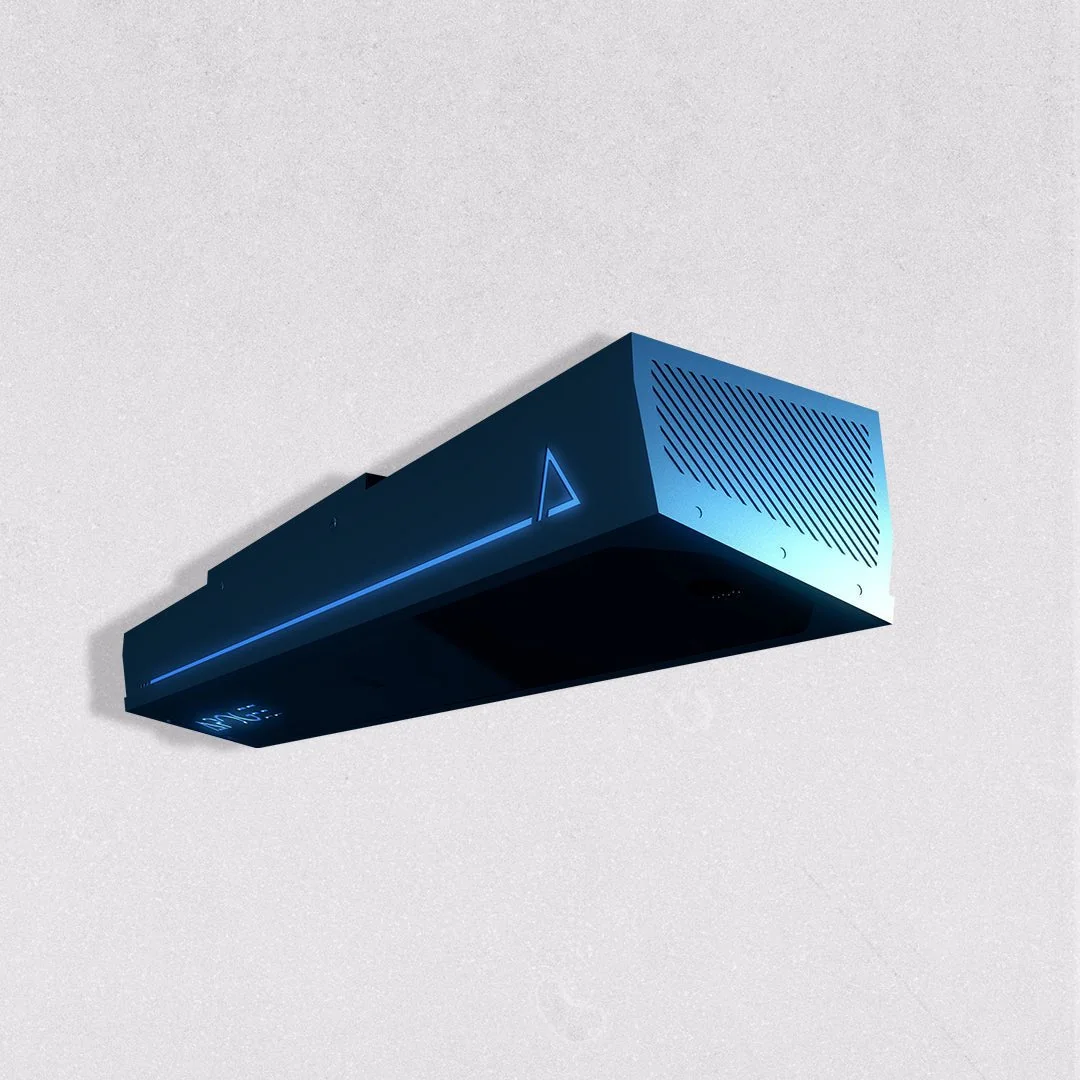
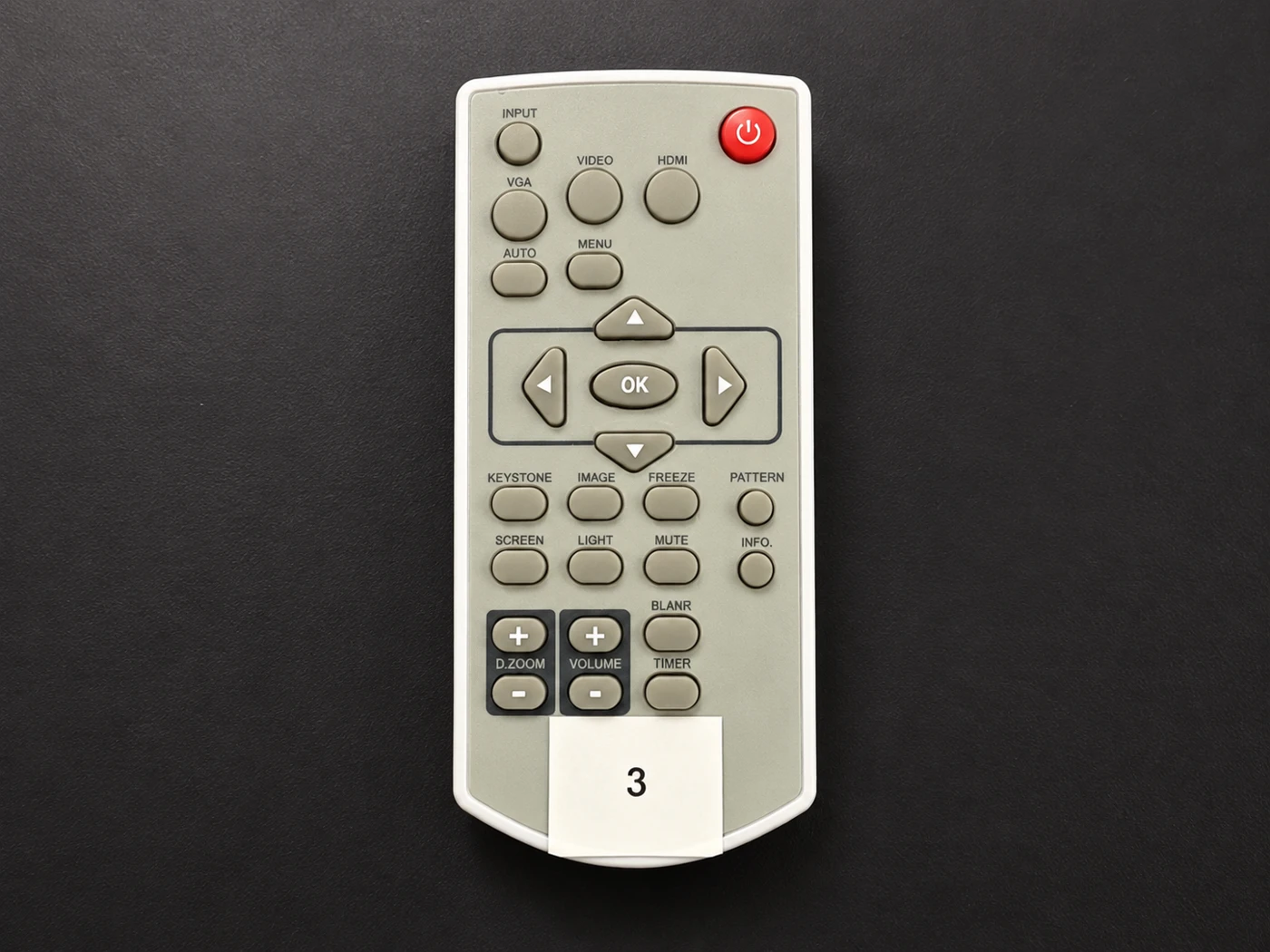
Point the remote labeled “3” at the projector and press its red Power On button.
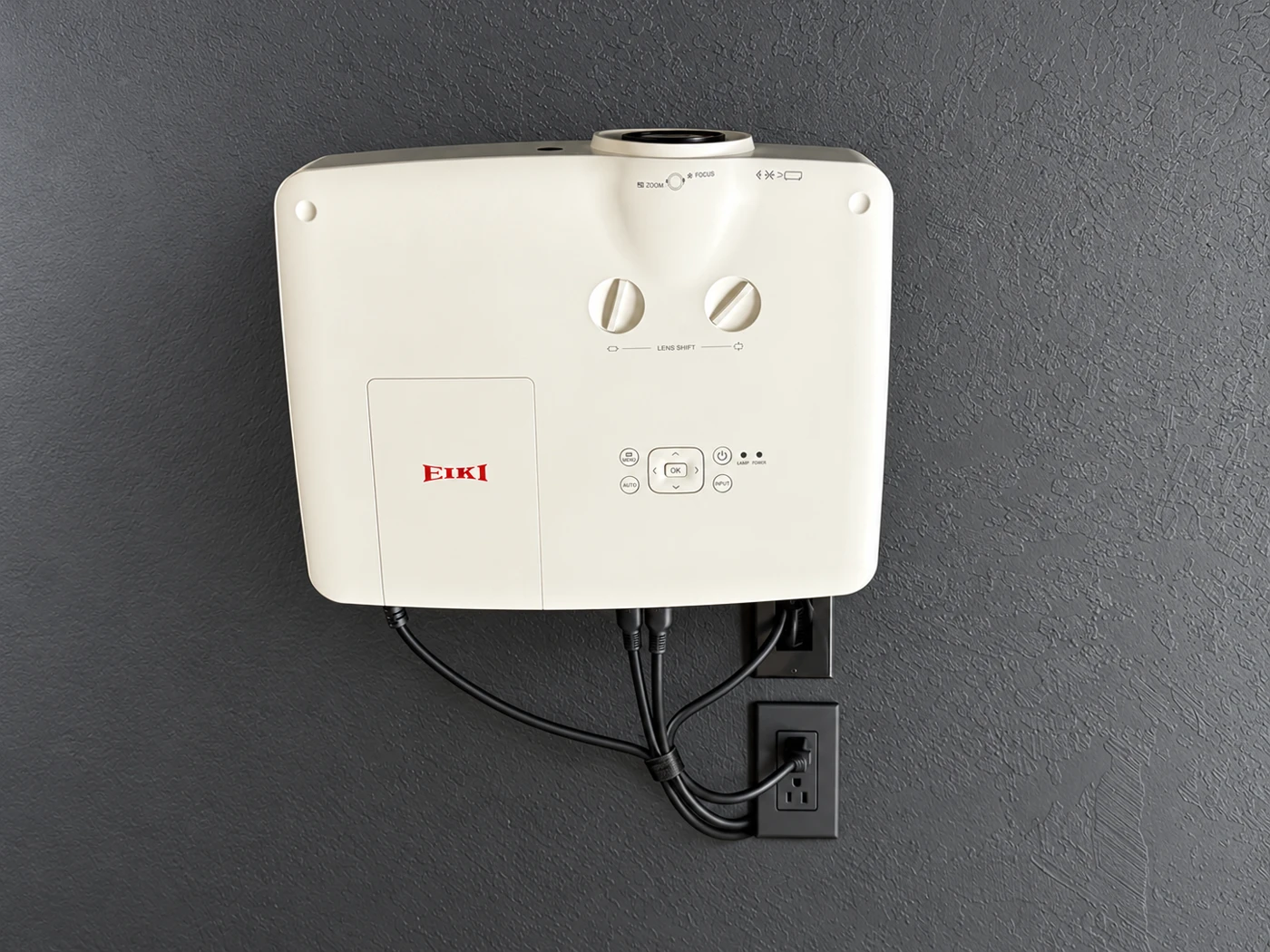
Allow the EIKI projector to start and display the computer picture on your bay’s screen. If the picture stays dark, ask staff for help.
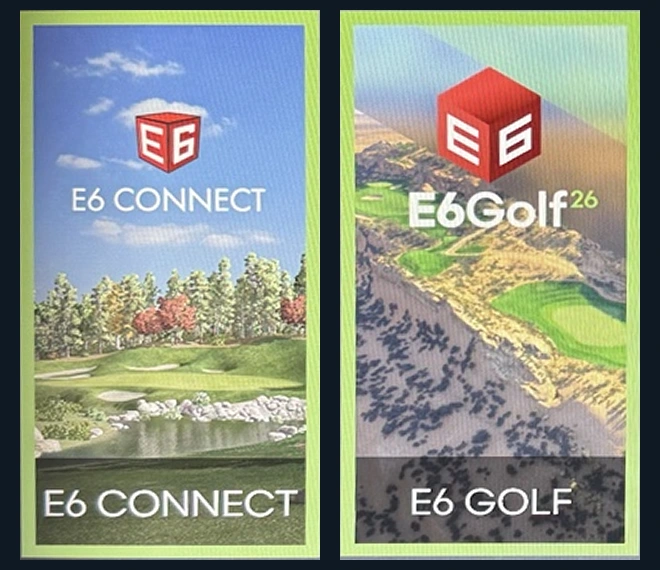
The TruGolf launcher opens when the PC starts. Select E6 CONNECT or E6 GOLF to play golf, then follow the account and session instructions below. For other sports, see the MultiSport game guide.

Scan this code with your phone camera, or select it to open TruGolf’s official registration page.
e6golf.com/register ↗You can prepare your player account on your phone. Already have an account? Use its login instead of creating another.
Using E6 CONNECT? Its account option is Create or Sign Up; you can also register through the E6 CONNECT Portal. Use the account link offered by the version running on your bay.
Official guides: E6 Golf account creation · E6 CONNECT sign-up and password help.
E6 CONNECT saves round data under a logged-in player profile. Menu names can differ in other E6 versions.
Use the MultiSport screen that opens after the PC starts. This guide covers TruGolf’s game catalogue; available titles and modes depend on what is installed and enabled on your bay. Select a game shown on your launcher, or ask staff if you cannot find it.
Aim through the screen toward the virtual target’s distance, rather than just touching its picture. Inside Heat is an exception: aim at its green target on the screen. Keep others behind the active player; retrieve equipment when play has stopped. Ask staff to handle tracking or calibration issues.
Match the tile on your simulator to the guide below. Scroll through the launcher to find each game.
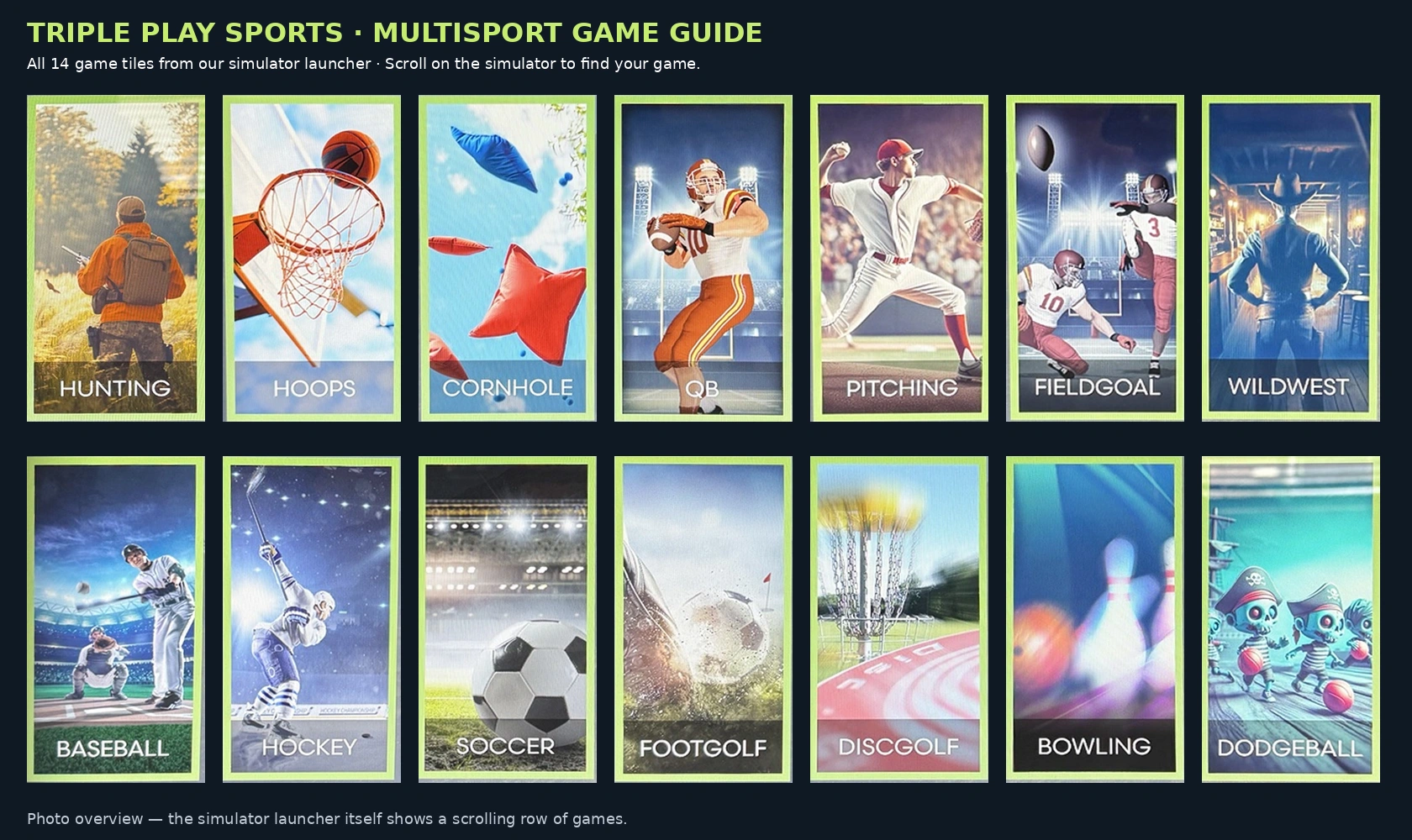
Select the picture to view all games larger. This overview combines your launcher photos; the simulator displays a scrolling row.
Select a game below to open its quick guide. Use the in-game How To screen for the exact rules and options in your installed version. Light-gun titles require the compatible accessory.

Equipment: Bat, soft ball & hitting tee
Hit the ball from the tee. Time contact with the virtual pitch for a boost. Scoring zones award 1–4 points; avoid outs.

Equipment: Stick & approved hockey ball
Choose Goalie, Targets, Long Shot or Blackout. Strike the ball toward the goal or targets; complete the selected mode’s objective.

Equipment: Approved soccer ball
Choose Penalty Kick, Targets or Passing. Kick at the goal, targets or teammates. Watch the active mode’s score and turn prompts.

Equipment: Approved soccer ball
Kick toward the virtual hole. Standard mode rewards fewer kicks; Demolition adds targets and bonus points. Check distance before choosing kick strength.

Equipment: Approved dodgeball
Choose Graveyard, Fire and Ice, or Pirates. Start with Ready or a keypress. Throw at enemies before time or health runs out.

Equipment: Staff-approved bowling ball substitute
Roll toward the virtual pins from the designated area. Take the next roll when ready. Play frames; optional virtual bumpers help beginners.

Equipment: Staff-approved flying disc
Throw toward the basket. Standard mode counts throws; lowest score wins. Discstruction adds explosive targets and bonus points; highest points wins.

Equipment: Approved soft baseball
Throw at the green strike-zone target displayed on the screen. Follow the pitching challenge and watch accuracy and speed feedback. Unlike virtual-distance games, aim directly at the screen target.
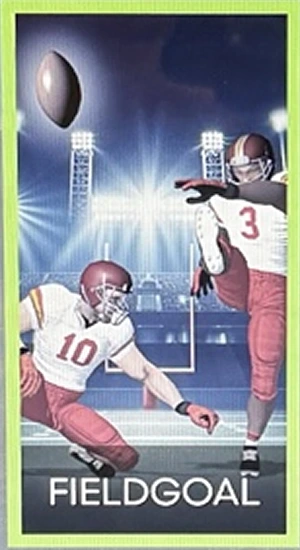
Equipment: Approved football & kicking tee
Wait for the snap, then kick toward the virtual uprights before the defense reaches you. Follow the game’s timing and distance prompts.
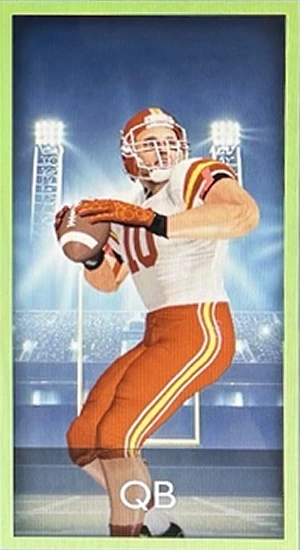
Equipment: Approved football
Choose a play, identify the receiver and throw the pass toward that receiver in virtual space. Complete the play before defensive pressure ends it.

Equipment: Approved soft basketball
Select an available mode. Use a controlled forward push toward the virtual target; a high indoor arc can hit the ceiling. Follow the scoring prompts.

Equipment: Approved beanbags
Choose Classic, Tic Tac Toe or 301. Gently lob the bag as in real cornhole. Track the selected mode’s score or board objective.

Equipment: Compatible light gun · Ask staff
Aim the light gun at the displayed targets and use its trigger. Follow the reload and stage prompts; complete the on-screen targets for points.

Equipment: Compatible light gun · Ask staff
Choose Upland Slam or Skeet and a difficulty. Aim and trigger the light gun at the moving targets. Follow the round and scoring prompts.
Our basketball shooting machine collects rebounds and returns passes so players can focus on shooting repetitions. Complete a staff walkthrough before using it.
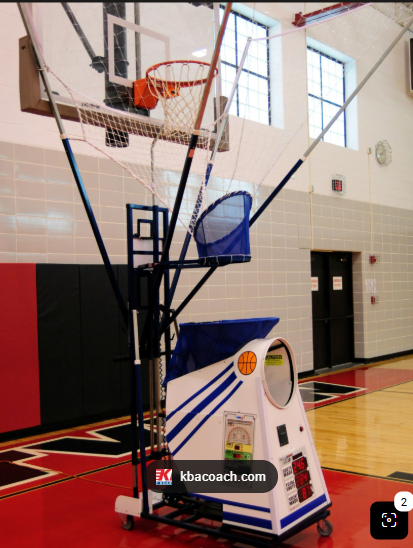
This is an orientation checklist. Exact setup and button-by-button instructions will be added once the facility’s model is confirmed.
Official Shoot-A-Way 8000-series demonstration. It shows a reference model, not a confirmed match for our machine. Open on YouTube.
The 6000 uses simpler switches and a knob-based control layout; the 8000 uses a programmable touchpad. Have staff compare the model label and control panel before following a guide.